
This article includes the following topics:
Sideloading the Add-in #
You can sideload the ReportWORQ Office Add-in by using a manifest XML file provided by ReportWORQ Customer Support.
- Download the manifest file.
Note: ReportWORQ v5.0.0.82 or newer is required to support this version of the manifest file. - Move the manifest file to a shared folder (for example, \ \ machinename\Add-in) and ensure that any ReportWORQ users have access to the network share, as follows:
- Create a folder on your PC, or in a network location.
- Copy the manifest file into the folder.
- Right-click the folder and select Properties, then select the Sharing tab.
- Select the Advanced Sharing button, enable the share, and click OK.
- Copy the Network path for use in Step 6, then select the Close button.
- Open Excel, then select File > Options.
- From the left menu, select Trust Center, and then select Trust Center Settings.
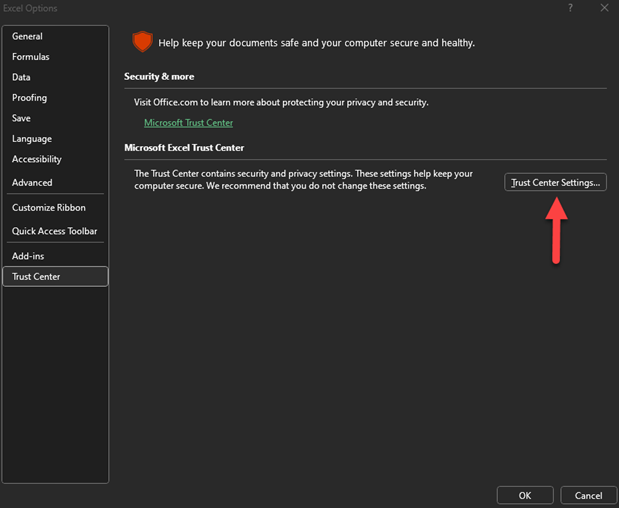
- From the left menu, select Trusted Add-in Catalogs.
- In the Catalog Url box, enter the UNC path for the shared folder containing the manifest file, select Add catalog, and then select Show in Menu:
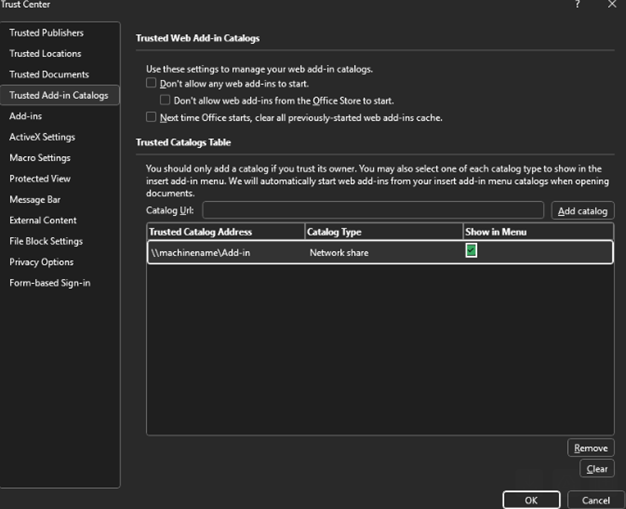
- Select the OK button twice to return to the main Excel window.
- Close and re-open Excel.
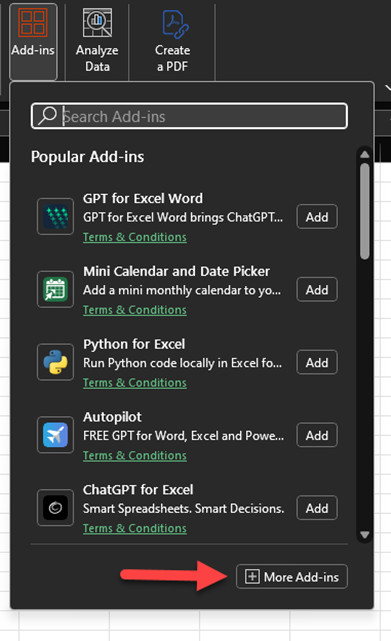
- On the Home tab, open the Excel ribbon and select Add-ins > More Add-ins:
- Select Shared Folder, and then Add the ReportWORQ Add-in:
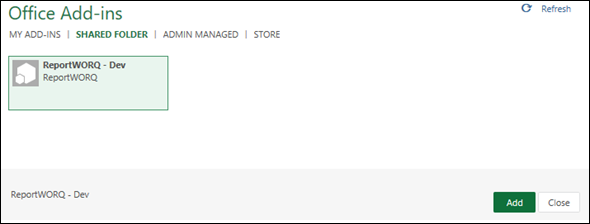
The Add-in is now available for use.
Upgrading the Manifest File #
To upgrade the manifest file:
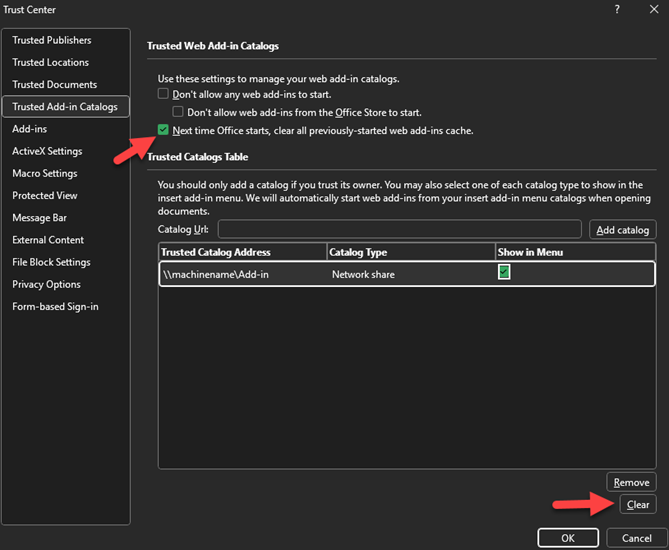
- Clear the Add-ins cache on the Trusted Add-in Catalogs screen:
- Close Excel.
- Copy the new manifest into the shared folder and then restart Excel.
- Perform the add-in installation steps again, if necessary.


